
The Reach badge for Shopify stores
Add the Reach badge to your store using a checkout editor
To use Reach as a Merchant of Record (MoR), you are required by the card schemes to display the Reach badge. This ensures the customer is informed of the parties involved in the transaction.
This page explains how to add the Reach badge to your Shopify store's checkout using a checkout editor.
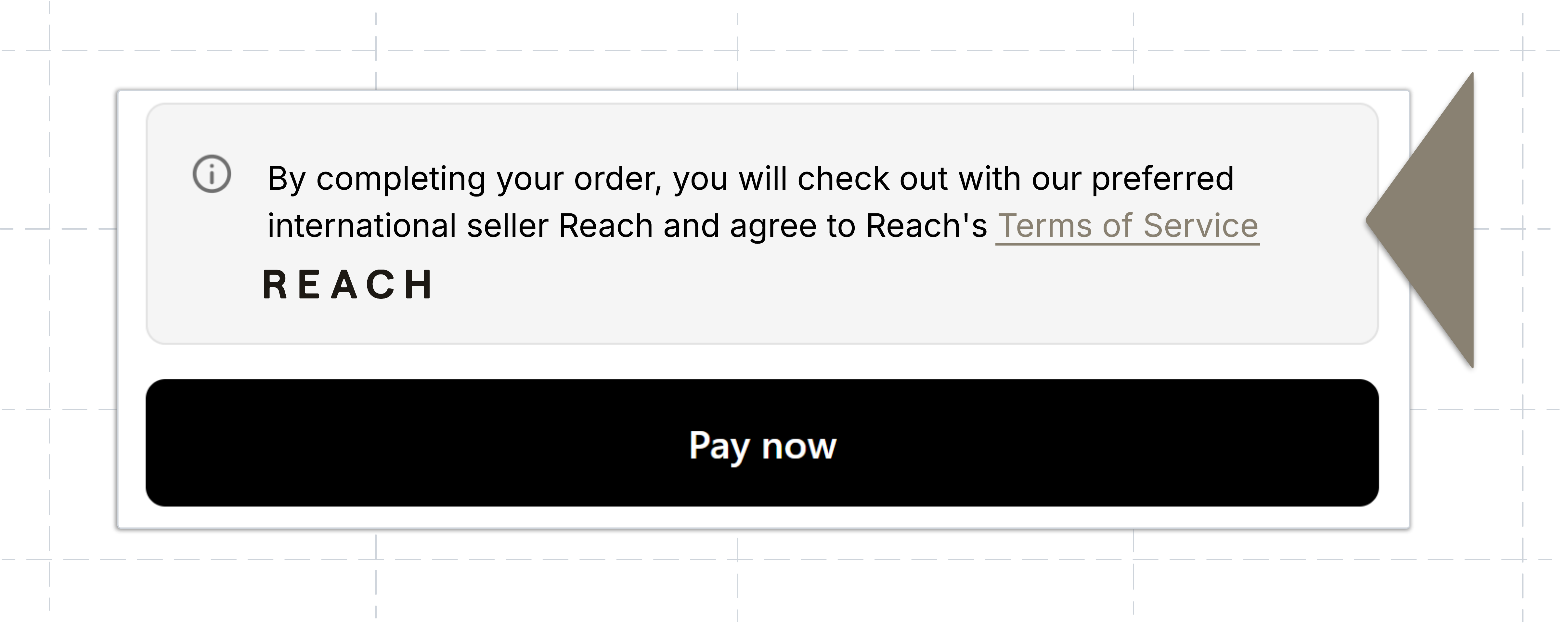
Using a checkout editor to add the Reach badge
You can disclose Reach as your store's MoR by adding the Reach badge on your checkout page using a checkout editor app.
Shopify supports a variety of apps to customize your checkout. The Checkout Blocks and Checkout Components apps are two popular choices.
Reach recommends either the Checkout Blocks app or Checkout Components app for suppliers using Shopify Plus.
If you are using your preferred checkout editor to add the Reach badge, refer to the following instructions:
- Copy the text from the block below.
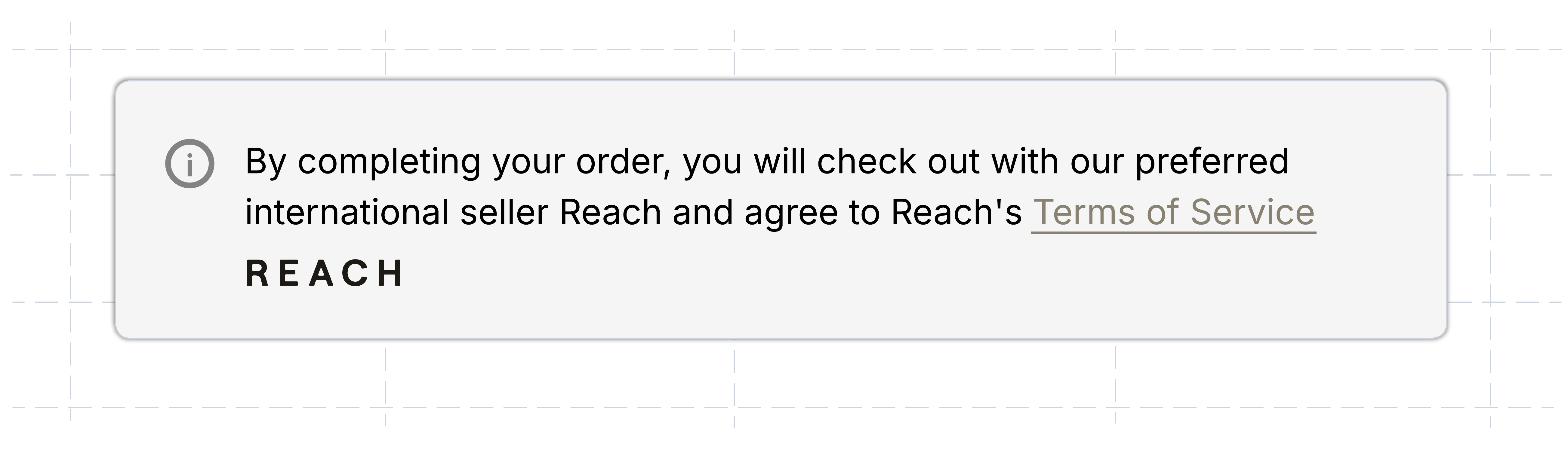
By completing your order, you will check out with our preferred international seller Reach and agree to Reach's [Terms of Service](https://www.withreach.com/consumer-terms-of-service).- Using your preferred app, paste the text into the relevant content field in the checkout and accounts editor.
- If you are not using Reach as the MoR for all regions where you sell, select the regions where Reach is the MoR in your app settings.
- Save the content block settings.
Once complete, ensure the Reach badge appears on the checkout page of your Shopify store in the correct regions.
Using the Checkout Blocks app
You can use the Checkout Blocks app to display the Reach badge using dynamic blocks.
Dynamic content allows you to customize your checkout pages in a multi-entity environment where your store does not use Reach in all regions. It can also be used for single-entity stores.
Alternatively, you may configure a simplified Static content block with the Reach badge. Static content is created directly in the checkout and accounts editor and will display on all checkouts.
Install the Checkout Blocks app
First, you must install the Checkout Blocks app. Complete the installation process by following the steps below:
- After signing in to your Shopify admin, navigate to the Shopify Checkout Blocks app page in the Shopify App Store. Alternatively, select Apps from the navigation menu in your Shopify Admin and search for Checkout Blocks.
- Click Install.
- You will be redirected to your Shopify Admin. In the Install app dialog, click Install.
Checkout Blocks will now appear as one of your apps in the side navigation menu.
Create a Dynamic content block
After installing the app, follow the instructions below to create a checkout block that will hold the badge content:
- You should be redirected to the Checkout Blocks page in your Shopify Admin after installation. If not, select Apps from the navigation menu and select Checkout Blocks from the Installed apps list.
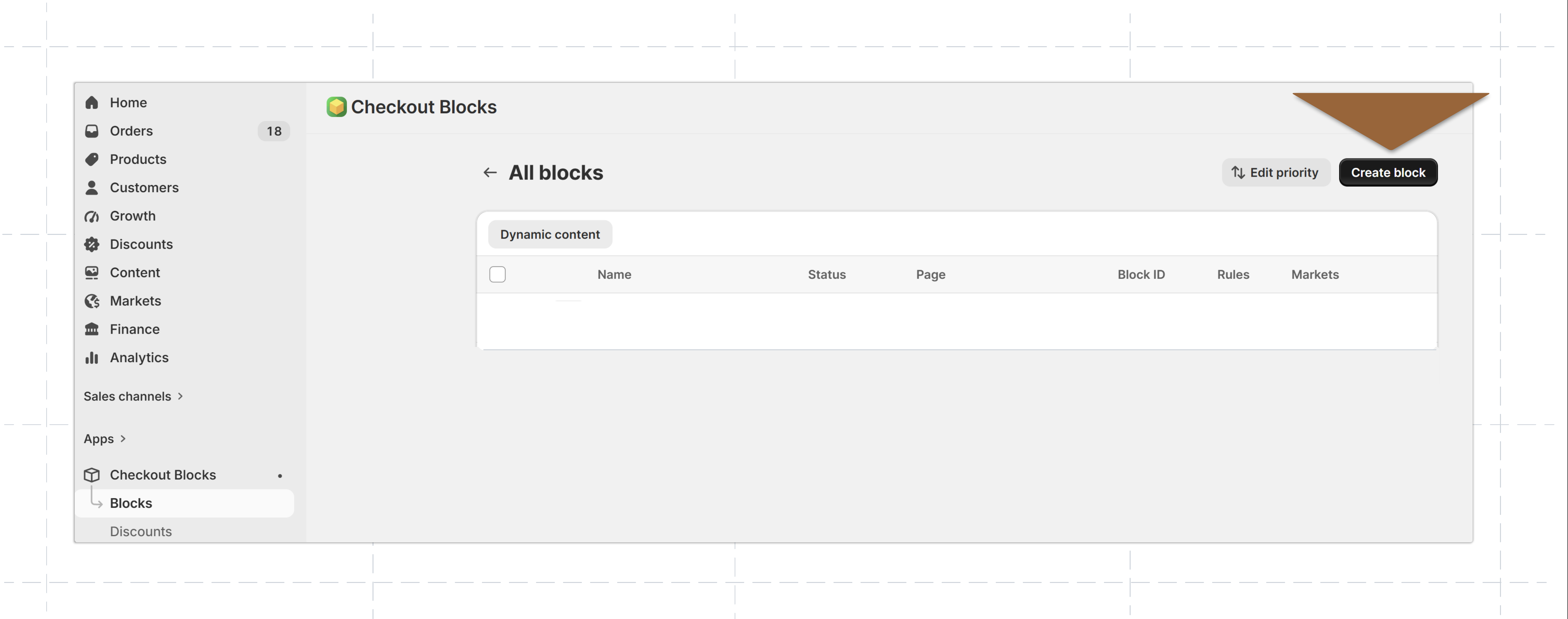
- Select Blocks.
- Click Create block.
- Under Custom content with display rules, select the Dynamic content block type.
- Select the Banner example template.
The checkout block editor will open, allowing you to configure the content block.
Configure the Dynamic content block
Follow the steps below to add the Reach badge text to the dynamic content block:
- Type
Reach Badgein the Block name field. - In the Content items section, click Edit next to Banner.
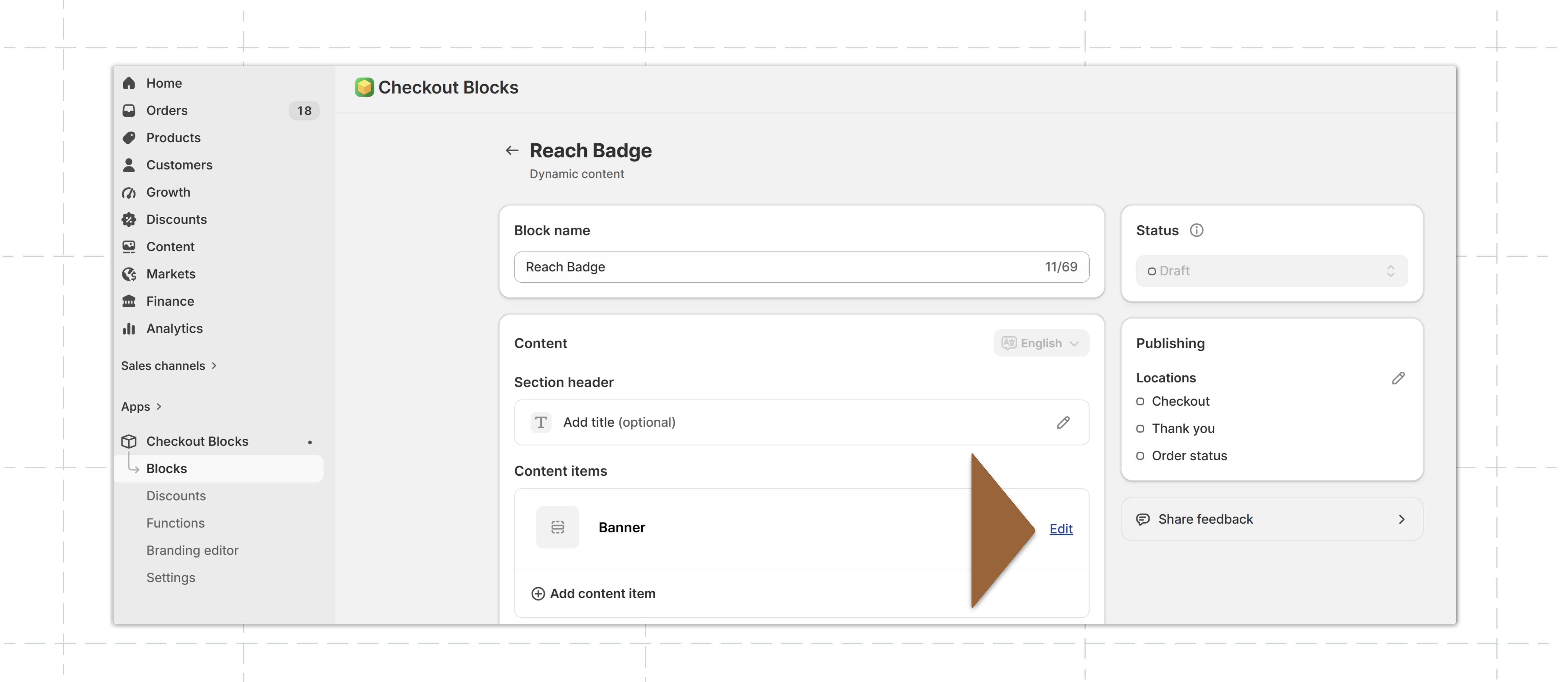
- In the Title field, type in
Reach Badge. - Copy the text from the code block below:
By completing your order, you will check out with our preferred international seller Reach and agree to Reach's [Terms of Service](https://www.withreach.com/consumer-terms-of-service).- Return to your Shopify Admin page. Delete the exemplar text present in the Content field, and in its place, paste the copied text into the Content field.
- Change the Banner status to Info banner and click Done. The remaining fields require no adjustments.
- Click Save at the top of the page to save your changes.
Set the display rules
Once the content block is configured, set the rules for displaying the block on your checkout. The checkout block should be visible to customers in the regions where Reach is your MoR.
- In the Publishing panel, click the Edit icon next to Locations.
- Make sure that only the Checkout checkbox is selected. Click Done.
- In the Display rules panel, select ⊕︀ Add display rule.
- In the search bar type
Shippingand select Shipping country. - Click Select a country.
- Select the countries where Reach serves as your MoR.
- Click Done.
Only the selected regions will display Reach's badge and Terms of Service on your checkout page.
- Click Save at the top of the page to save your changes.
- Change the Status from Draft to Active.
You can now add the Dynamic content block to your checkout.
Add the Dynamic content block to your checkout
Once the content block is configured and set up with display rules, add it to your checkout using the checkout and accounts editor.
Follow the instructions below or review Shopify's Creating checkout blocks in the Checkout Blocks app to add the Reach badge:
- Click More actions ⌄ and select Add to editor.
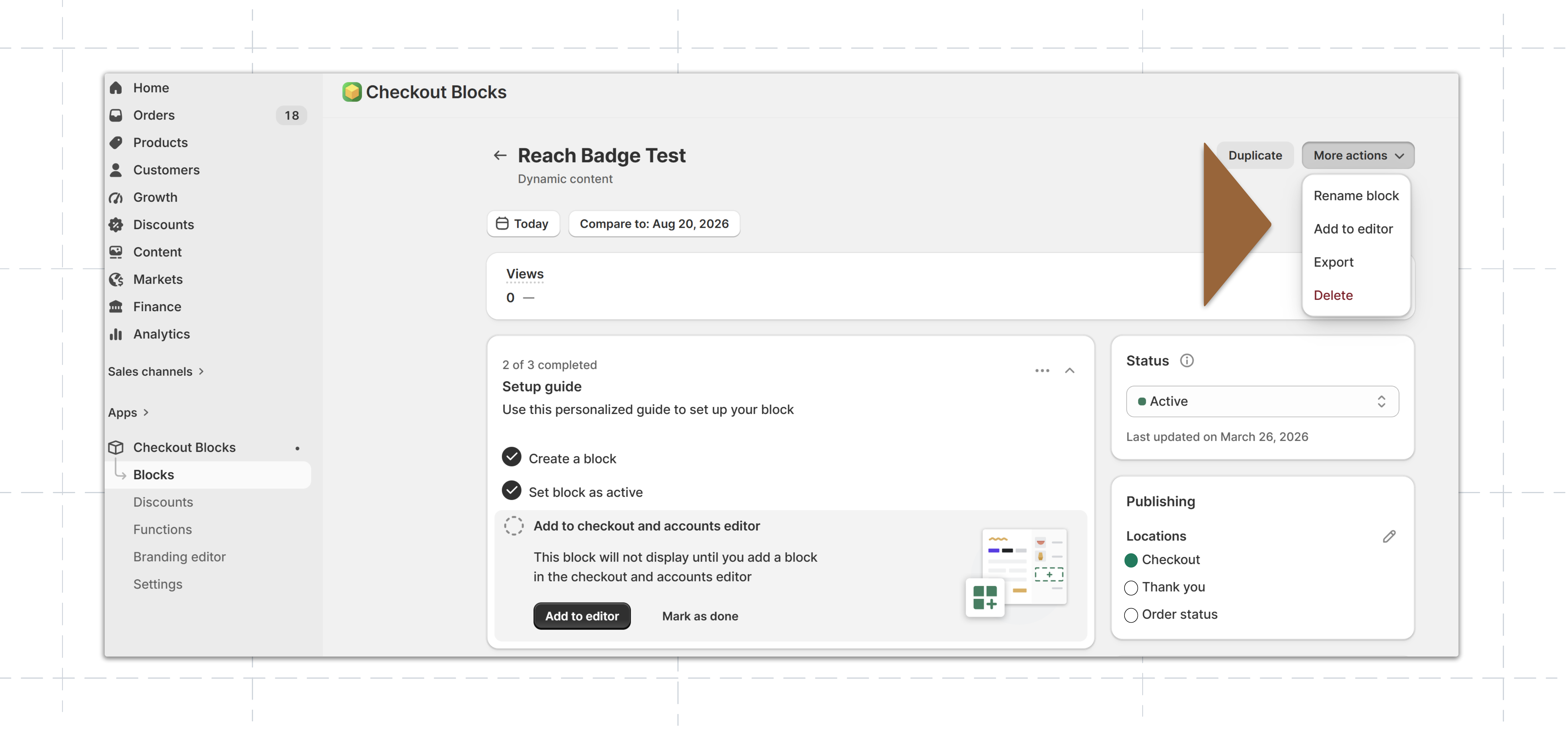
- A dialog will appear outlining the editing steps and your Block ID. Note the Block ID and click Open editor. A new page will open for the checkout and accounts editor.
- On the editor page, click the blue ⊕︀ Add to next to Dynamic content in the left Checkout Blocks panel and select Checkout.
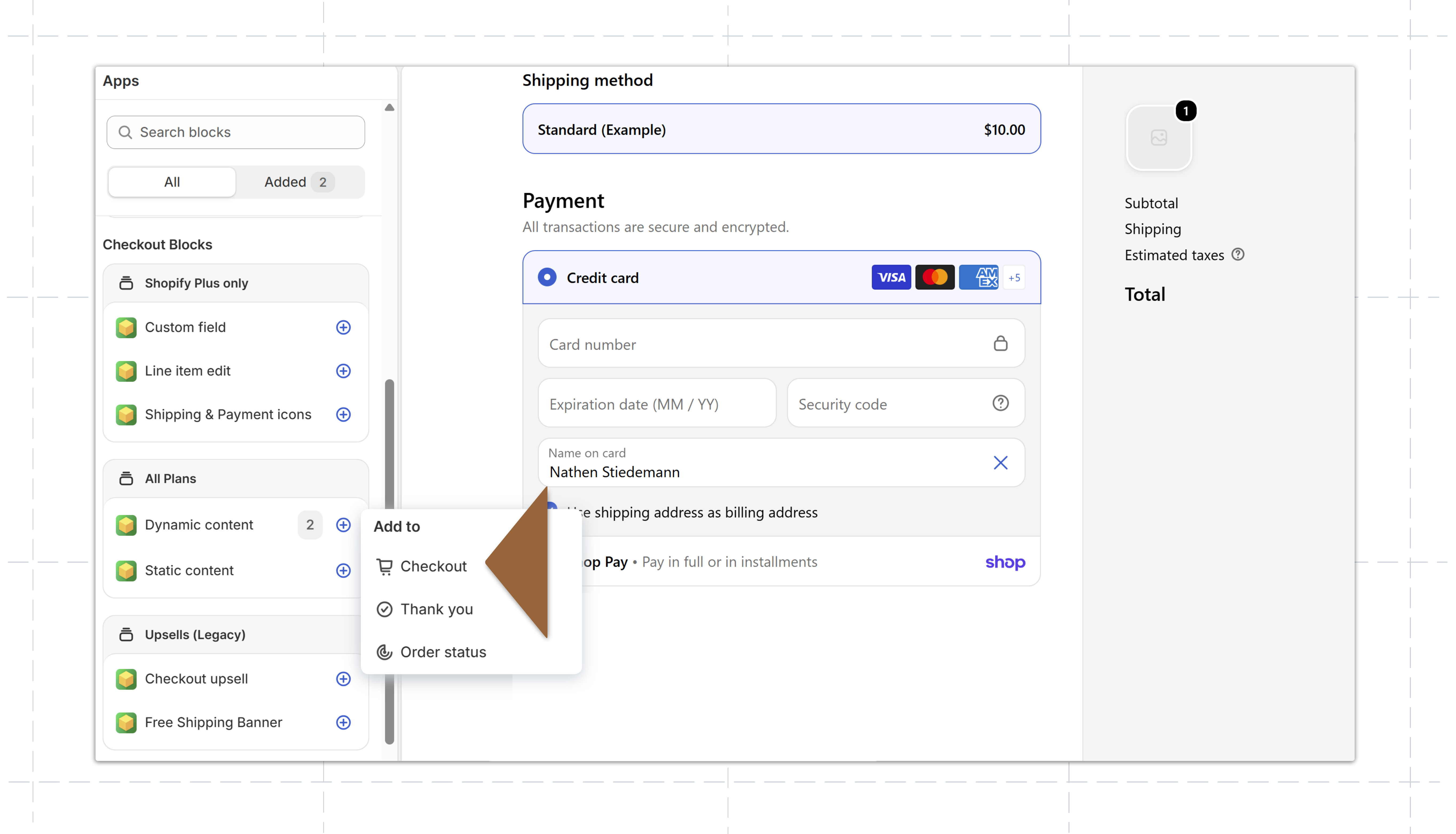
- The dynamic content block will appear on the checkout preview, and the Dynamic content panel will open. Under Block settings, select the block ID you noted in step 2 from the Block ID dropdown list. The content block will appear in the checkout preview, showing the Reach badge.
- Move the Dynamic content block to a suitable location using one of the following methods:
- Using the arrows below the content block.
Error
An error may prevent you from moving the block past a certain point in your checkout with the arrows. In this case, use the second method described.
- Select the Sections icon in the top-left corner of the toolbar, then drag the dynamic content block to the desired location in the content list.
- Using the arrows below the content block.
- Click Save in the upper-right corner.
The Reach badge will now be displayed to your customers at checkout in the regions where Reach is your MoR.
Using the Checkout Components app
You may use the Checkout Components app to display the Reach badge on your Shopify checkout.
To begin the setup process, notify your Reach representative, who will connect you with the Checkout Components team.
Install the Checkout Components app
After your introduction, follow the steps below to add and configure the app:
- Install the Checkout Components app from the Shopify app store.
- Subscribe to the Starter plan. Notify your Checkout Component contact after you subscribe.
- Open your Shopify admin dashboard.
- Click Apps in the side navigation bar and select Checkout Components.
- Under Checkout Components, select Settings.
- Select Integrations and select the Reach card.
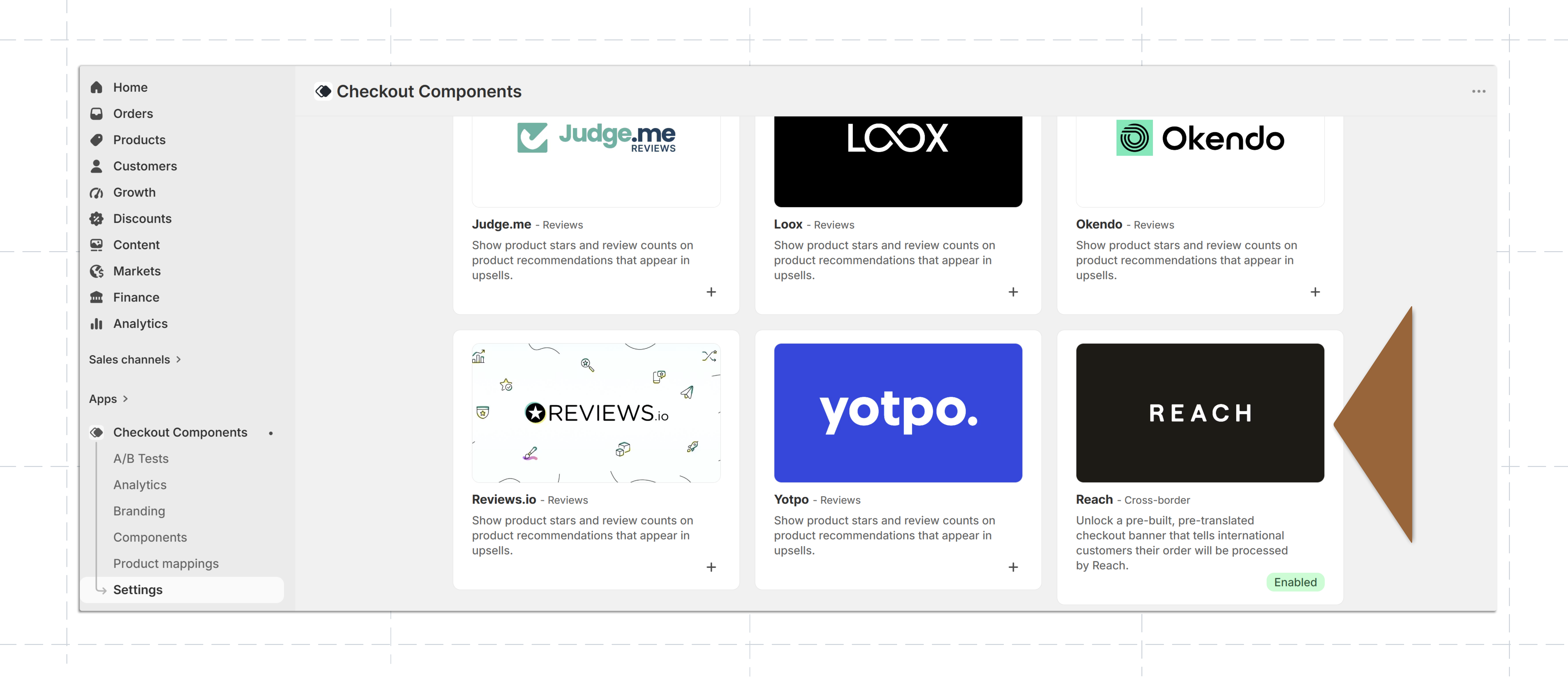
- Select the Enable Reach checkbox, then click Save.
The Reach badge template will now be accessible in the Checkout Components app.
Create a checkout component
Once the Reach badge template has been enabled, create a checkout component using the following steps:
- Select Components from the side navigation menu.
- Select Create component.
- Select the Reach international checkout template. The form will open pre-populated with banner copy, the Terms of Service link, and translations for all 13 supported languages.
The Reach internal checkout template is hidden until you enable the integration. If it is missing contact your Reach representative or try reloading the app.
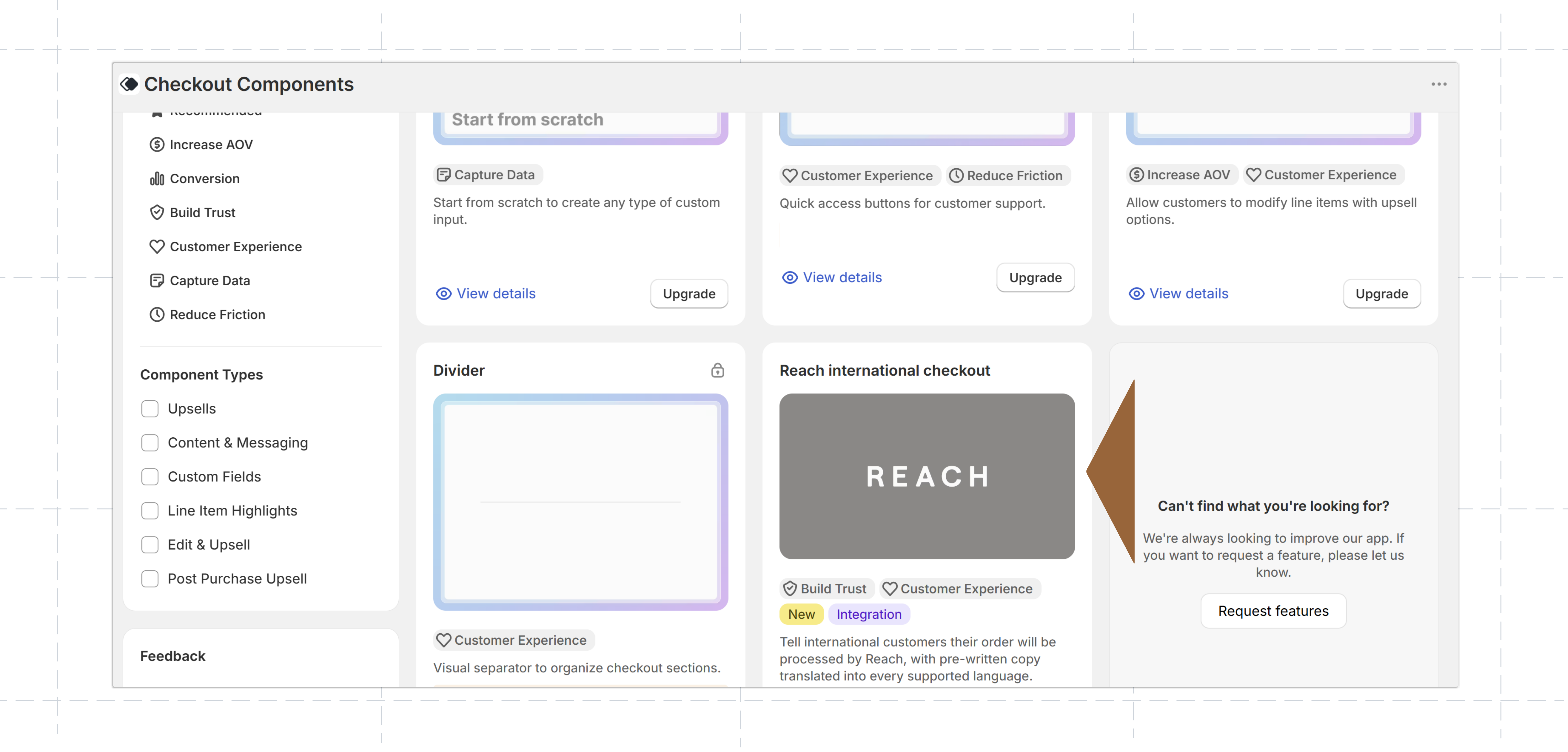
- Edit the component name, provide a name, and click Save. For example,
reach-badgeis an acceptable name. The form and display rules will be locked, with a banner that reads: This component is a template. - Click Publish.
Verify the component is active. If it is not active, select the component name, select the Status drop-down, and choose Active.
Add the component to your checkout
Once your component is active, place the component in your checkout using the following steps:
-
On the Checkout Component page in your Shopify Admin, click the component's hyperlinked name.
-
Select Add to checkout, then select your store name.
-
In the Shopify checkout editor, select the blue ⊕︀ Add to icon beside Checkout Components in the left editor panel and click Checkout to add a Checkout Component block.
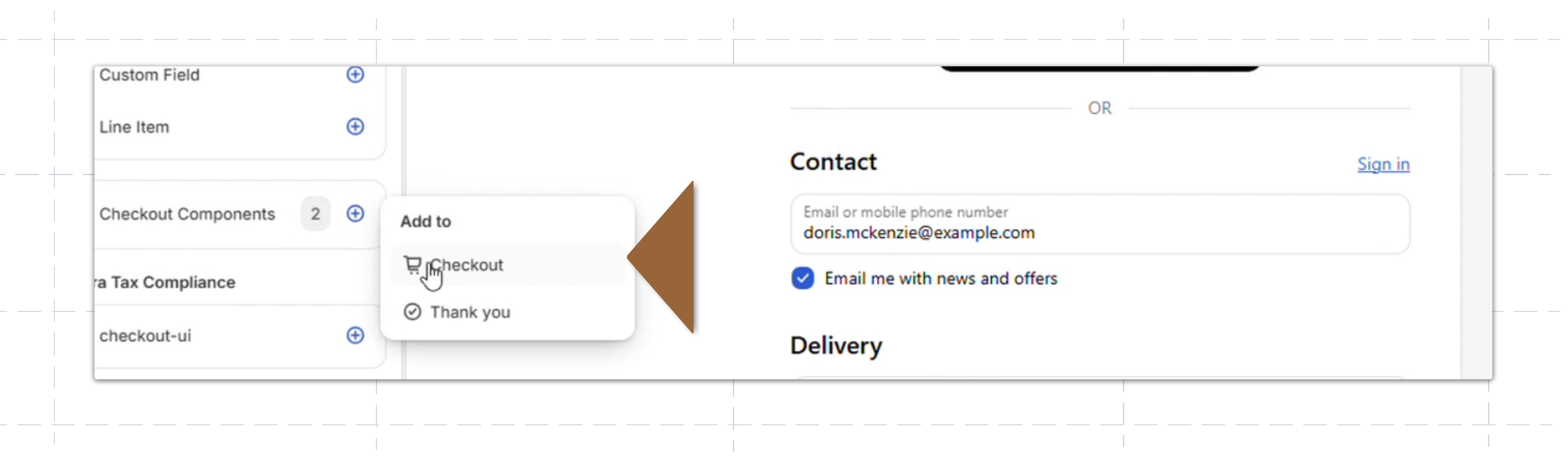
-
In the Checkout Components panel, under Block settings, fill in the Component name field with the same name you created in the previous steps. The block will update to display the Reach badge.
-
Move the Dynamic content block to a suitable location using one of the following methods:
- Using the arrows below the content block.
Error
An error may prevent you from moving the block past a certain point in your checkout with the arrows. In this case, use the second method described.
- Select the Sections icon in the top-left corner of the toolbar, then drag the dynamic content block to the desired location in the content list.
- Using the arrows below the content block.
-
Click Save.
You can review how your checkout will appear to customers using the Preview Shop button at the top right of the page.
The Checkout Component block should display the Reach badge. Verify the following elements are present:
- The banner renders info-toned with the disclosure copy.
- The Terms of Service link opens Reach's consumer terms in a new tab.
- The Reach logo renders below the text, left-aligned, and hovering over it shows a Learn more tooltip. Clicking the tooltip opens a new tab to withreach.com.
- Switching the checkout language updates the copy with the correct translation.
For more information about Check Components, review the Checkout Components Documentation portal.
Updated about 1 month ago