
Manage the Reach data app
Learn how to install or update your Reach data app.
The Reach data app connects to your Shopify store, providing Reach access to order, product, dispute, fulfillment, and Shopify payments data.
During your go-live, a Reach bank account will be linked to your Shopify store. As the Merchant of Record (MoR), Reach manages your transactions through this account. Data accessed through the app is associated with transactions that pass through the Reach-managed bank account to ensure comprehensive reporting and settlement.
Install the Reach data app in your Shopify store
Only the store owner, developer, or a user with Manage and install apps and channels permissions can install an app. See Shopify's Store permissions for details.
After you accept Reach's Shopify collaborator request, your Reach representative will send you a link to install your custom Reach data app. Use the link to complete the following steps:
- Click the link from your Reach representative.
- Select the store on which the app should be installed. The Install app window will open.
- Click Install.
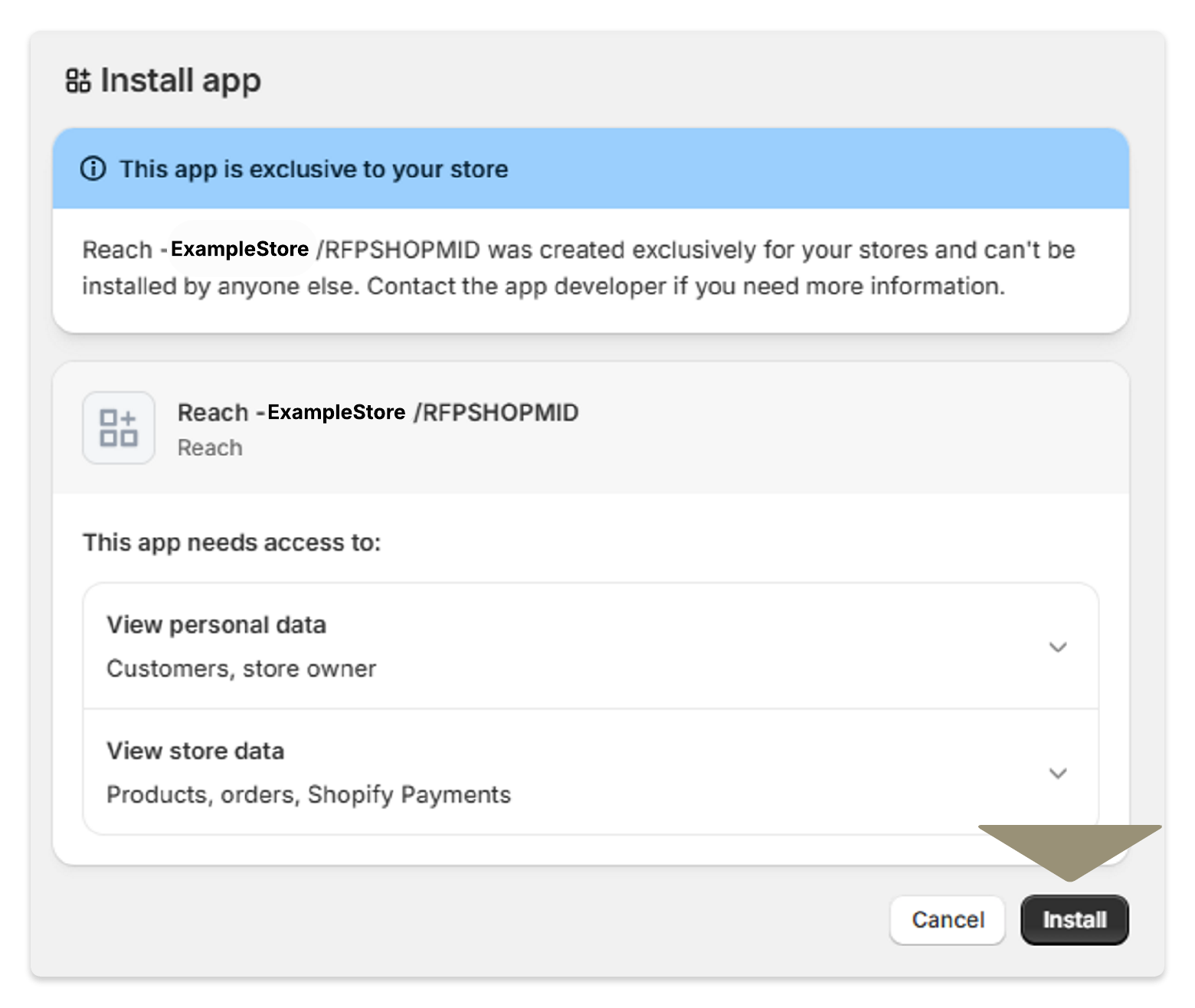
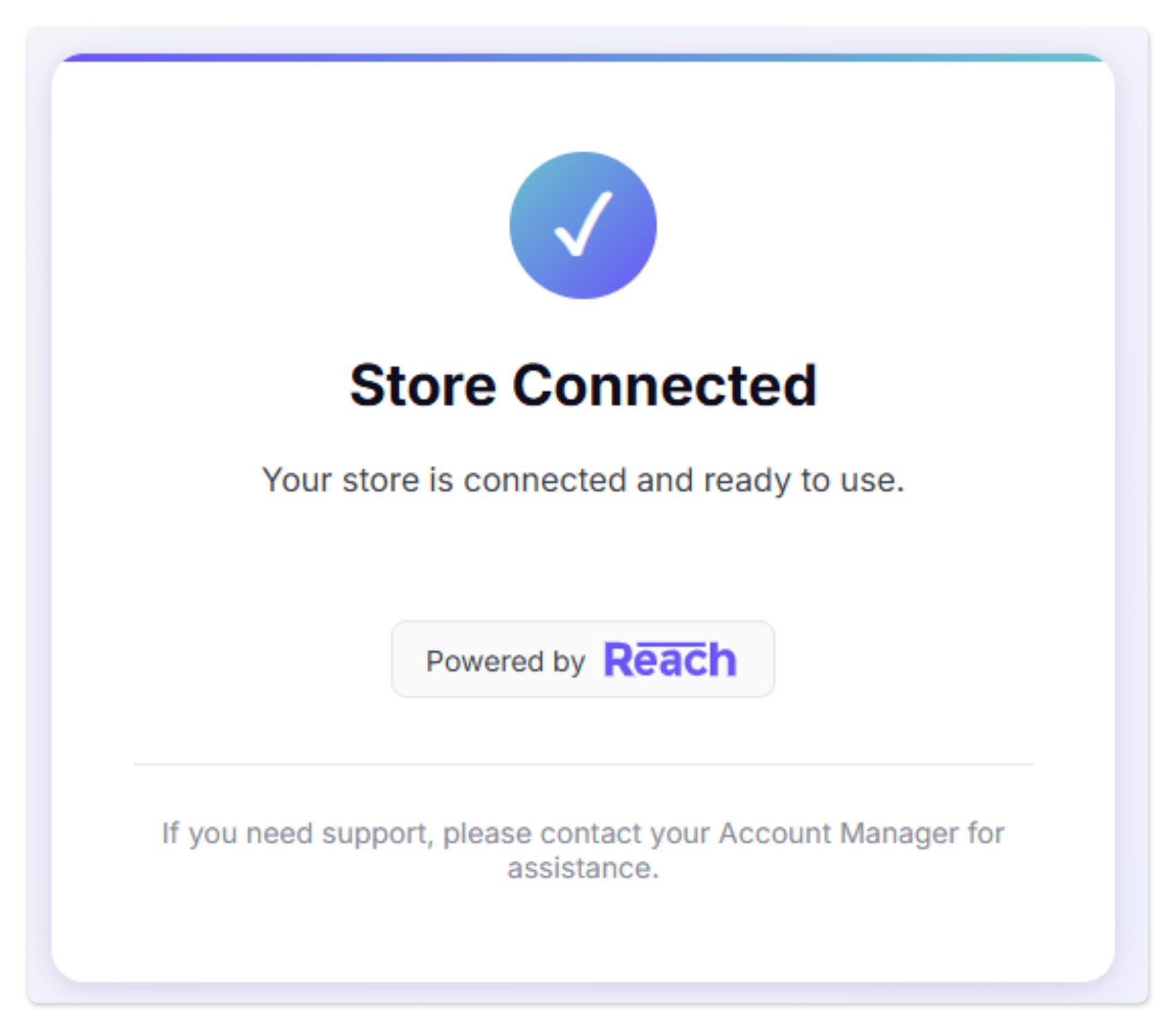
If the installation is successful, you will see the Store Connected success message. Let your representative know when you have successfully installed the Reach data app.
If an Authentication Failed message appears after clicking Install, ensure you are logged in to the correct store. The app and the links are store-specific. If you have further issues, contact your Reach representative.
Suppliers on a Shopify Plus plan with multiple stores must repeat the installation process for each store.
Update the Reach data app
Reach will contact you when new app versions are available. Complete the following steps to update your app:
- Sign in to your Shopify admin.
- Click Settings in the navigation menu, then click Apps.
- Click Develop apps.
- Select your custom Reach data app.
- Click Open app.
- Click Update.
If the update is successful, a Store Connected message will appear. If you do not get a Store Connected message, contact your Reach representative for assistance.
Updated 11 days ago