
Shopify Payments / Shop Pay - CA Guide
This guide will walk you through setting up an extension store on Shopify using the Reach Embedded solution.
> 🚧 Some sensitive information has been removed from screenshots and will be provided as-needed by your onboarding team at Reach.
# <p style={{ color: '#6158fb' }}>Part One</p> Setup API for remittance data.
Our first step is to install an API into your Shopify account to ensure smooth reporting and remittance on Reach’s end. Follow these easy steps to complete the process:
## <p style={{ color: '#6158fb' }}>Step 1.</p>
Navigate to **Settings > Apps and Sales Channels**
## <p style={{ color: '#6158fb' }}>Step 2.</p>
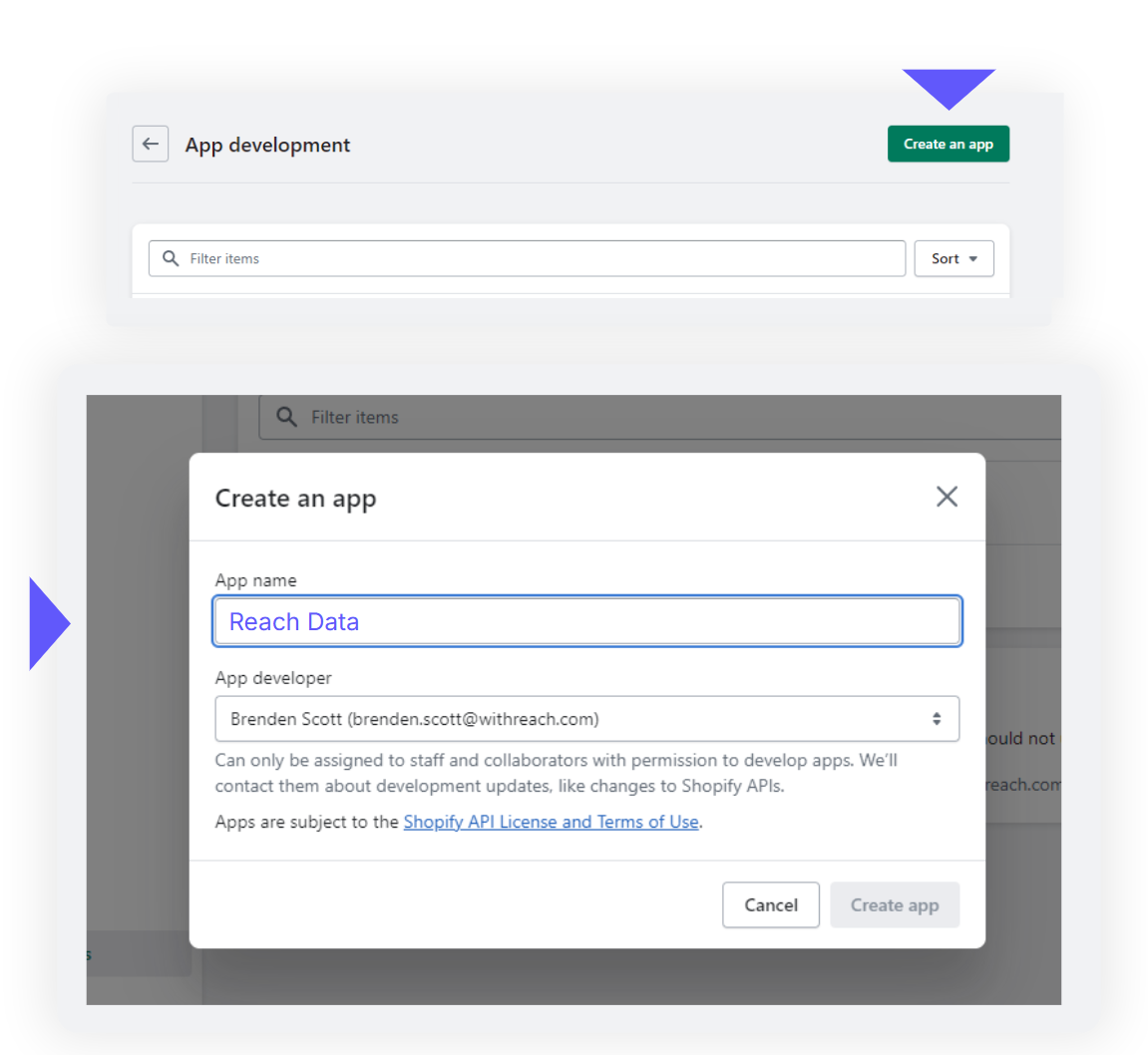
Click **“Develop Apps”** in the top-right corner.

<br />
## <p style={{ color: '#6158fb' }}>Step 3.</p>
Once clicked, the screen will change - click **“Create an app”** in the top-right corner.
## <p style={{ color: '#6158fb' }}>Step 4.</p>
This should pop up a modal window. You can enter a name for the app, we suggest **“Reach Data.”**
<br />
## <p style={{ color: '#6158fb' }}>Step 5.</p>
This will now take you to an overview page.
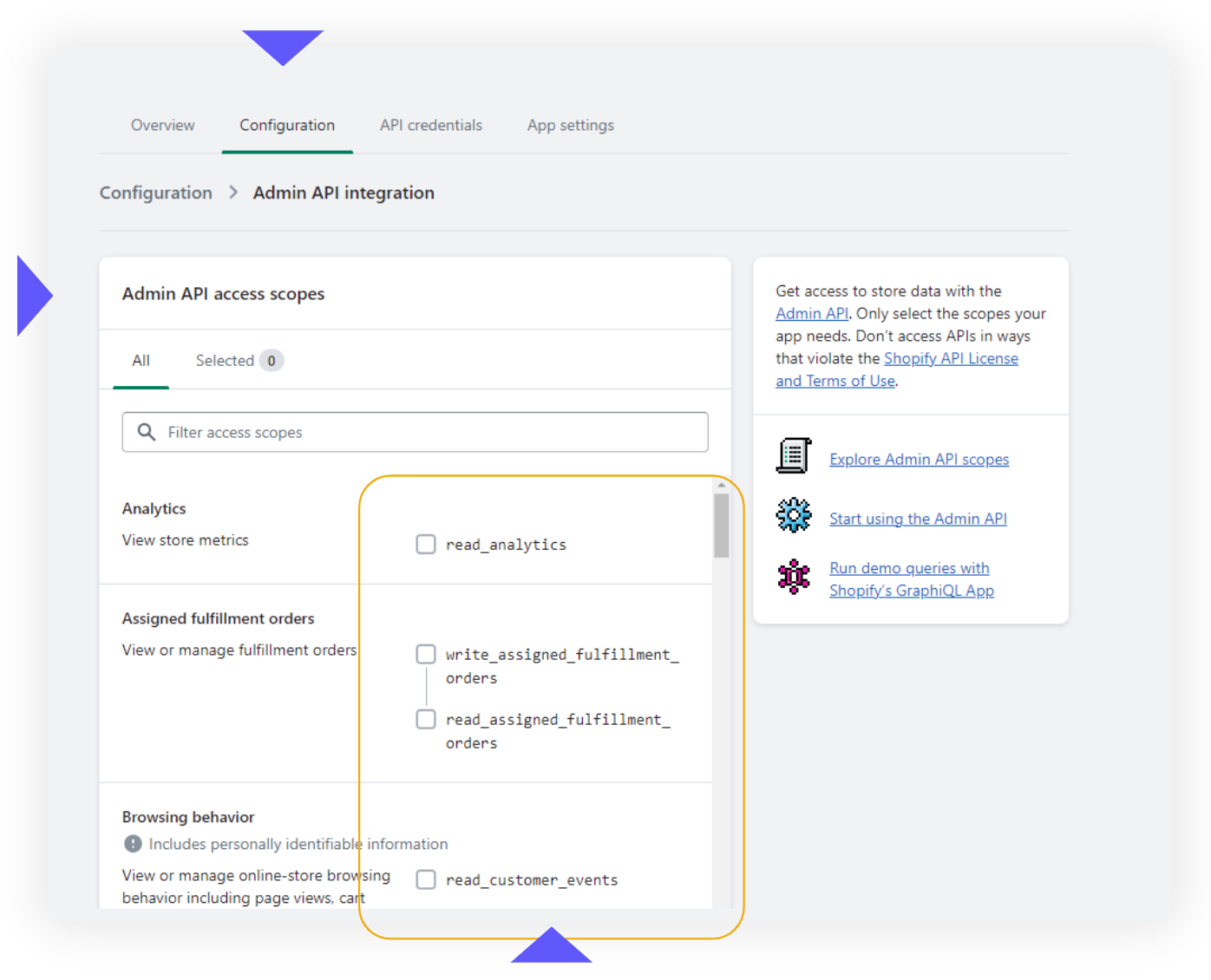
• From tabs at the top, click **“Configuration”**
• Under Admin API access scopes search and click the checkboxes of:
*<p style={{ color: '#6158fb' }}>read\_orders\
read\_products\
read\_shopify\_payments\_payouts\
read\_shopify\_payments\_disputes\
read\_shopify\_payments\_accounts\
read\_shopify\_payments\_bank\_accounts</p>*
• Scroll to the bottom and click **“Save”**
<br />
## <p style={{ color: '#6158fb' }}>Step 6.</p>
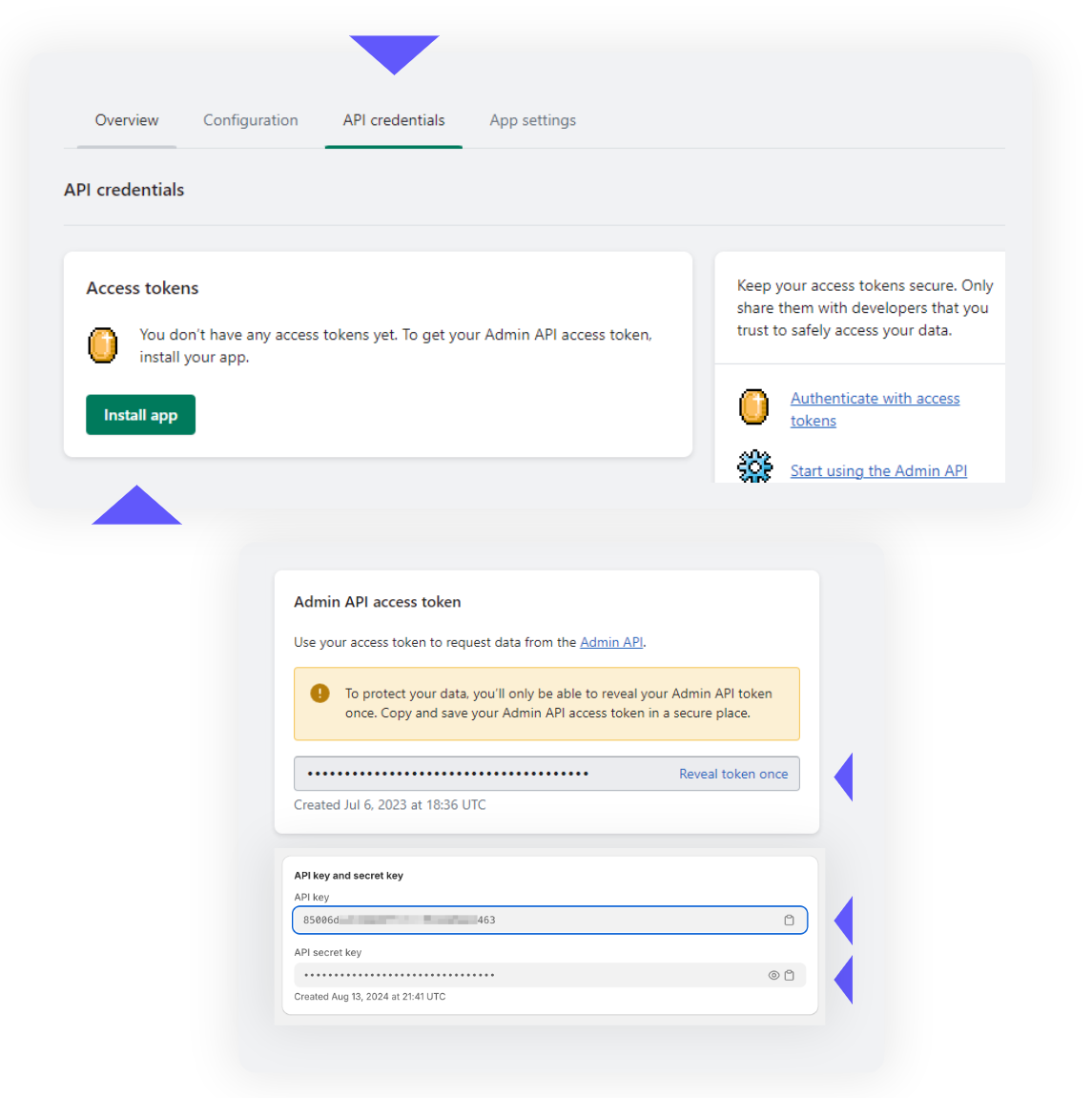
Navigate to API Credentials from the tabs on the top.
• Click **“Install App”**
## <p style={{ color: '#6158fb' }}>Step 7.</p>
You will then be provided with an API Access Token and API Keys\
• Click **“Reveal token once”**\
• Copy the following and send to your Reach representative
*<p style={{ color: '#6158fb' }}>Admin API access Token\
API Key\
API Secret Key</p>*
<br />
<br />
# <p style={{ color: '#6158fb' }}>Part Two</p> Go-live call with Reach.
> ❗️ IMPORTANT
>
> The following steps should not begin until your scheduled Go-Live call with Reach.
## <p style={{ color: '#6158fb' }}>Begin entity change.</p>
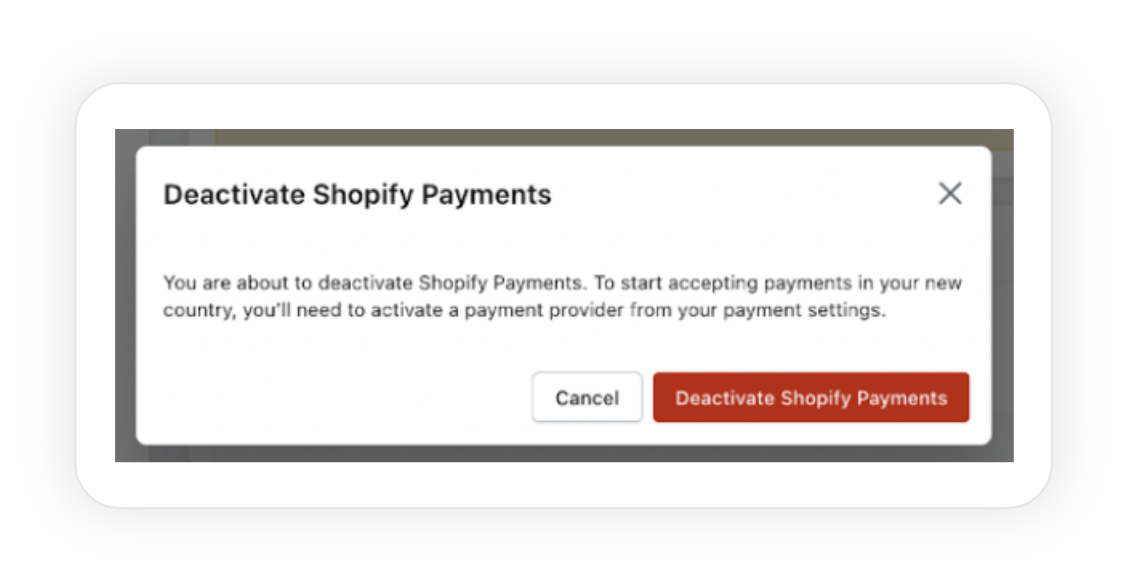
• Please being by going to **Settings > Payments**
• **Deactivate** existing Shopify Payments.
• Now, you will be able to change your store’s billing information.
<br />
## <p style={{ color: '#6158fb' }}>Store entity & address.
Change all following business information in **Settings > Store Details**
<p style={{ color: '#6158fb' }}>Legal business name</br>
Country/region </br>
Address </br>
City </br>
Province</br>
Postcode</p>
> 🚧 This information will be provided securely by your Reach onboarding team.
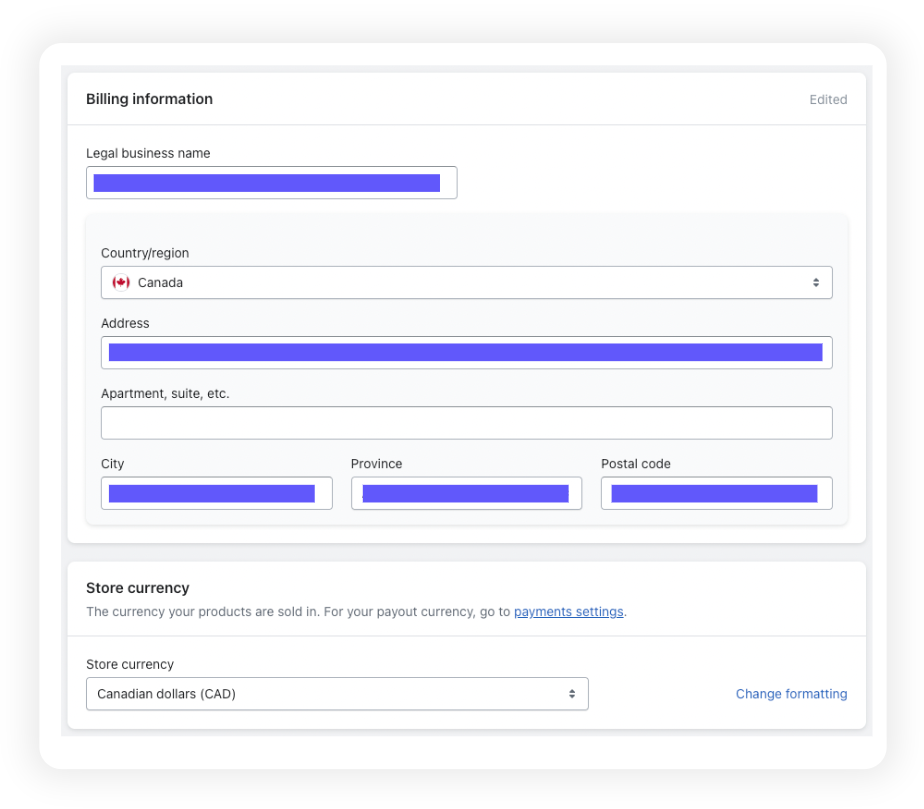
> 📘 Note that once the currency is changed, the prices must be updated to the new store currency in order to not lose out on the exchange rate.
# <p style={{ color: '#6158fb' }}>Part Three</p> Activate Shopify Payments.
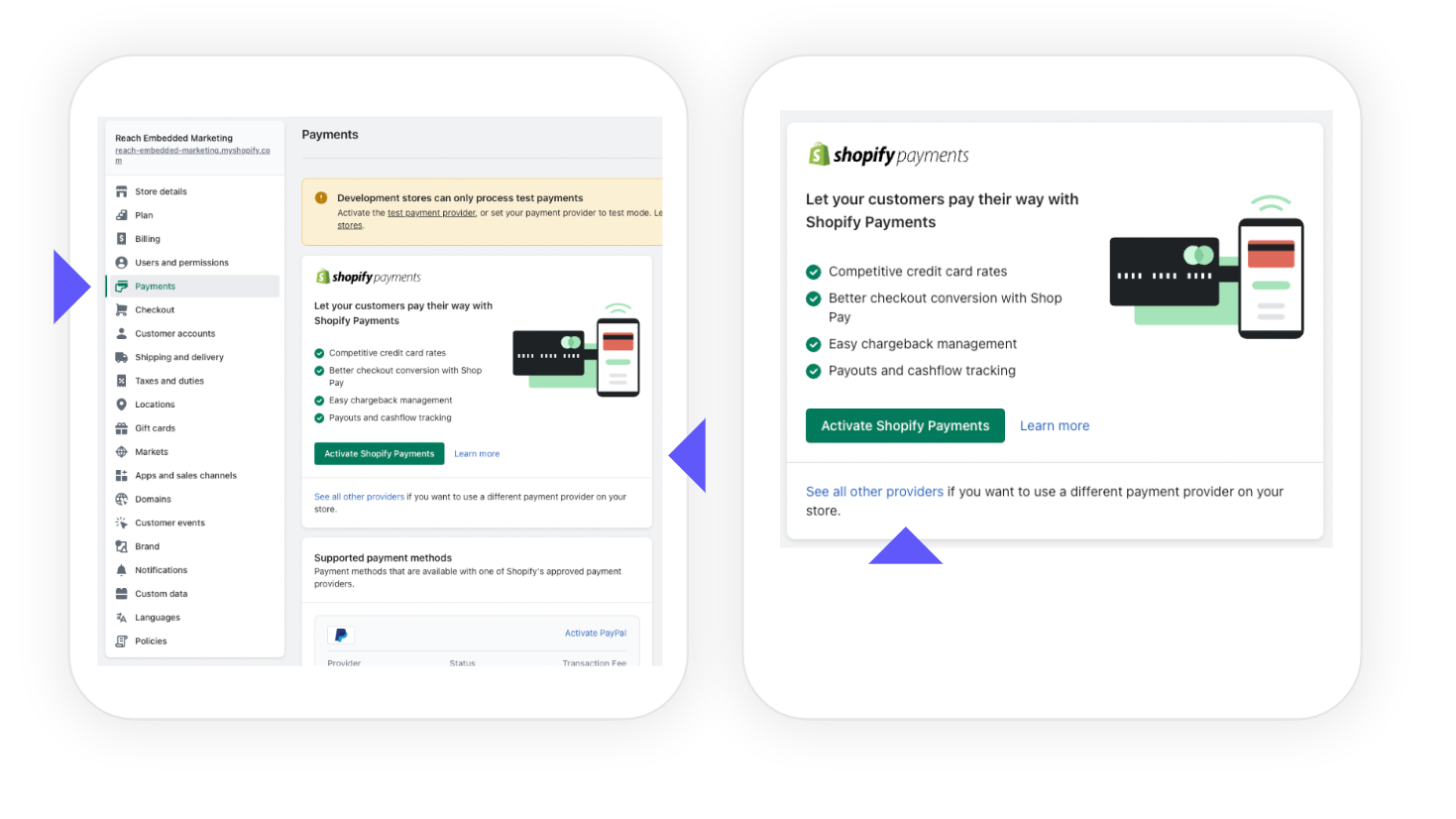
With your store’s billing information updated, it is time to re-activate Shopify Payments.
## <p style={{ color: '#6158fb' }}>Step 1.</p>
Navigate to ***Settings > Payments*** and click “Activate Shopify Payments.”
<br />
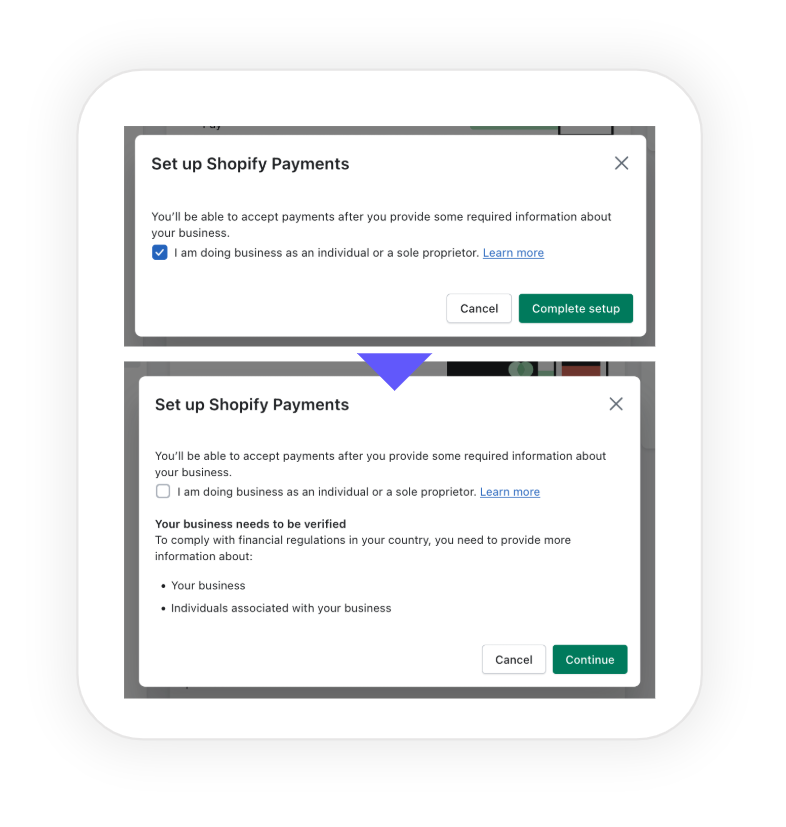
## <p style={{ color: '#6158fb' }}>Step 2.</p>
If it is checked by default, please ***uncheck*** the box ***“I am doing business as an individual or sole proprietor.”***
<br />
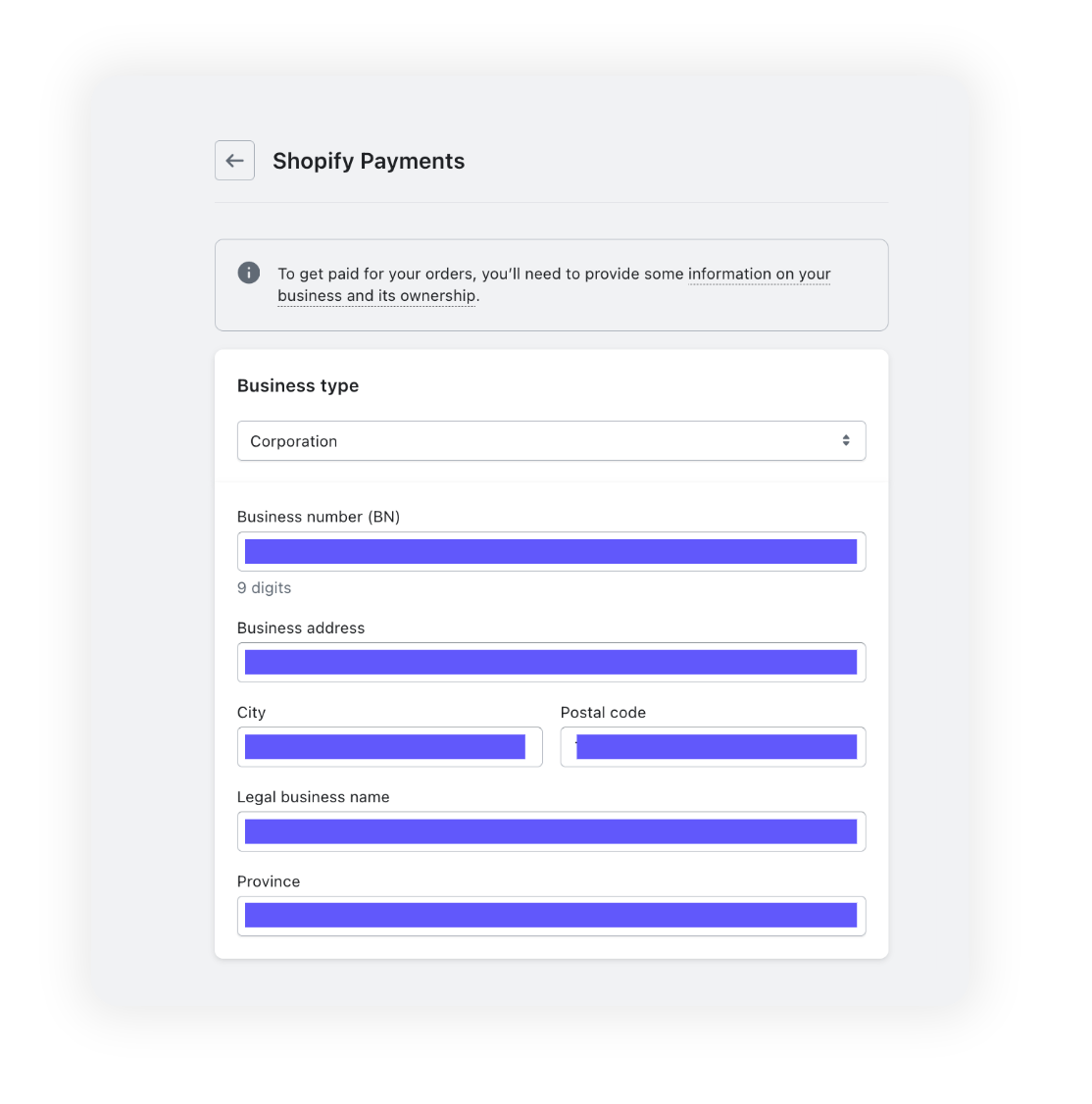
## <p style={{ color: '#6158fb' }}>Business Type
Change all following business information under **"Business Type."**
<p style={{ color: '#6158fb' }}>Business type</br>
Business Number (BIN) </br>
Business address</br>
City</br>
Postal Code</br>
Legal Business Name</br>
Province</br>
</p>
> 🚧 This information will be provided securely by your Reach onboarding team.
<br />
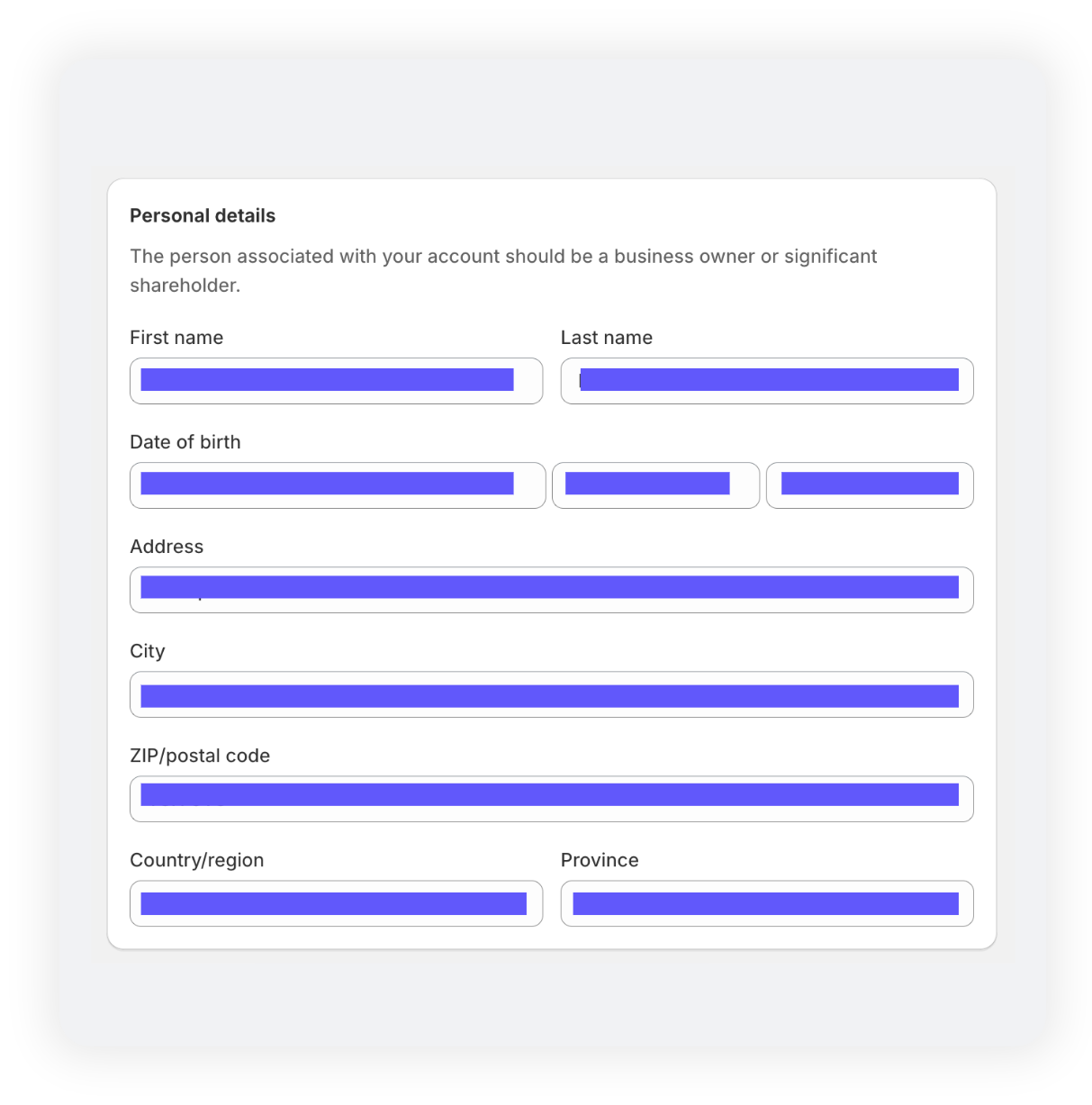
## <p style={{ color: '#6158fb' }}>Personal details
Enter all other information as detailed under **"Personal details."**
<p style={{ color: '#6158fb' }}>First name / Last name</br>
Date of birth</br>
Address</br>
City</br>
ZIP/Postal Code</br>
Country/region</br>
Province</br>
</p>
> 🚧 This information will be provided securely by your Reach onboarding team.
<br />
<br />
## <p style={{ color: '#6158fb' }}>Custom billing statement & banking information
Enter information as provided.
• **Statement descriptor**
<p style={{ color: '#6158fb' }}>RCH-[your desired descriptor]</p>
• **Phone number**
<p style={{ color: '#6158fb' }}>[your number]</p>
• **Banking information**\
Enter information as provided by your Reach representative on the go-live call.
<p style={{ color: '#6158fb' }}>Bank State Branch Number</br> Account Number</p>
<Image align="center" width="500px" src="https://files.readme.io/948fadd32e9de71dcb7c94235fa32865c33873d8547ad44e41045395fd833c8f-image.png" />
<br />
## <p style={{ color: '#6158fb' }}>Payout currency
Ensure that the currency is the same as the **entity currency.**

<br />
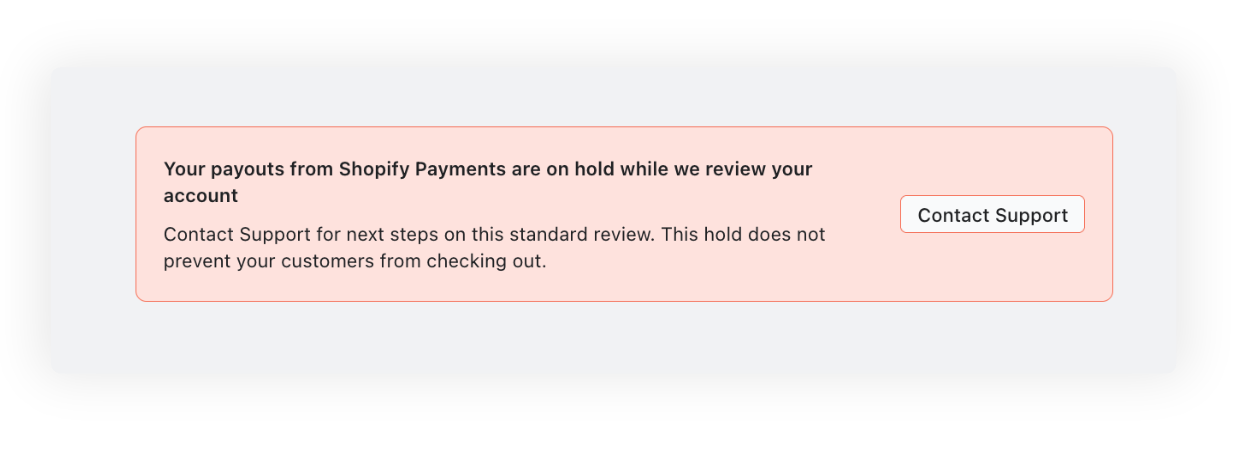
## <p style={{ color: '#6158fb' }}>Hold message
Please do not be concerned when presented with this message. Payouts will be on hold while Shopify verifies the new account, but shoppers will still be able to checkout and complete their purchases.
<br />
# <p style={{ color: '#6158fb' }}>Part Four</p> PayPal setup.
To use Reach’s local acquiring solution through PayPal on your Shopify storefront, **you will need to contact your Reach representative in order to work through this process together.**
Begin by going to **Settings > Payments**, and under Supported payment methods, click **“Activate PayPal.”** A new browser tab will open to input PayPal credentials.
## <p style={{ color: '#6158fb' }}>Step 1.</p>
**Enter credentials.** Your Reach representative will provide you login details for localized PayPal processing.
## <p style={{ color: '#6158fb' }}>Step 2.</p>
**2-factor authentication.** Once logged in, there will be an authentication code to input that refreshes every 30 seconds.
## <p style={{ color: '#6158fb' }}>Step 3.</p>
**Setup complete.** Log out of the PayPal browser tab and your setup is complete!

<br />
# <p style={{ color: '#6158fb' }}>Part Five</p> Terms & conditions
<br />
**Merchant of Record requirements**
By deploying this solution, Reach will be acting as your Merchant of Record. There are legal requirements from our processing partners that we strictly adhere to, such as the Terms & Conditions laid out by our partnership with the merchant.
[Please visit this link to read our Terms & Conditions](https://docs.withreach.com/docs/reach-embedded-terms-of-service) and follow the steps outlined to easily place them on your website - these must be accessible from a link in the footer of your website.Updated 9 months ago